Once clicked a dropdown menu housing a few options would be displayed.
Select the “More settings.” option in the menu. See the image below for reference.
Once selected, the Advance Settings menu would then be displayed.
Proceed to Click on the “User Management” key, there you can create and manage all user access.
To add a new user discipline,
Select “New” button to setup a new user permission.
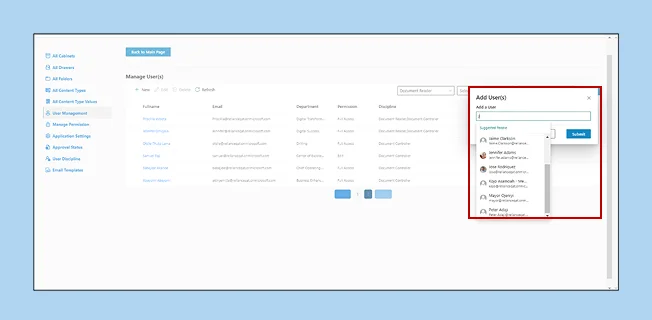
Select the new user from the directory integrated into the solution from the “Add User” field.
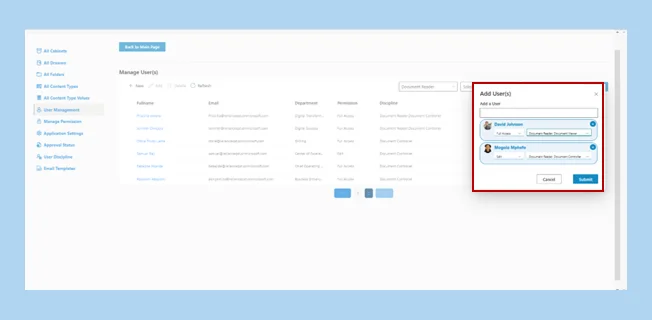
Note:“Multiple Users can be selected at once from the directory. See the image below for reference.”
Select “New” button to setup a new user permission.
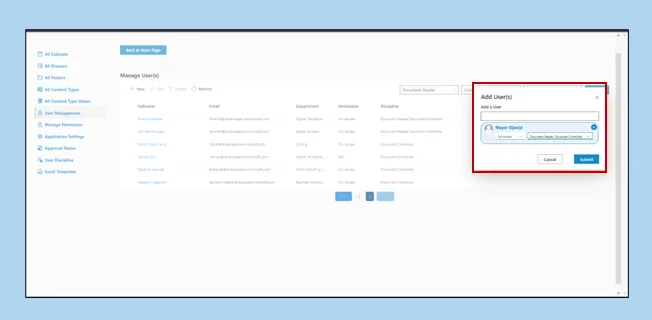
Select the new user from the directory integrated into the solution from the “Add User” field.
Note:“Multiple Disciplines can be given to a user.”
Click on “Submit” to complete the creation process.
To add a new user discipline,
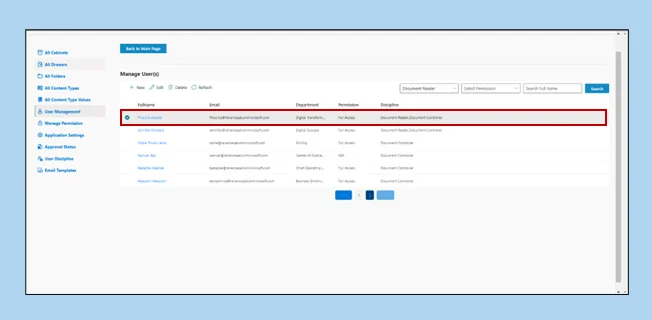
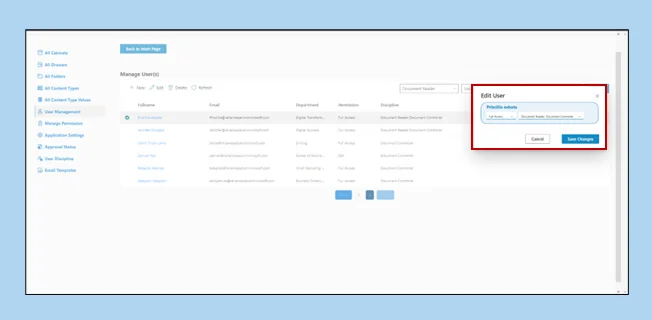
Select the user you want to edit to animate the “Edit” button.
Proceed to Click on the edit button to edit the user selected.
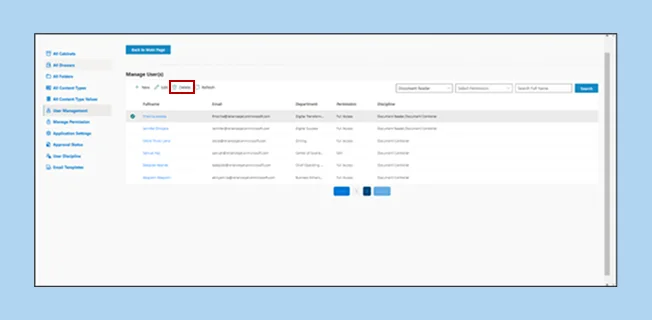
To Delete user from the system,
Proceed to Click on the edit button to edit the user selected.
Once the user is selected, Click on the “Delete” button to delete the user.
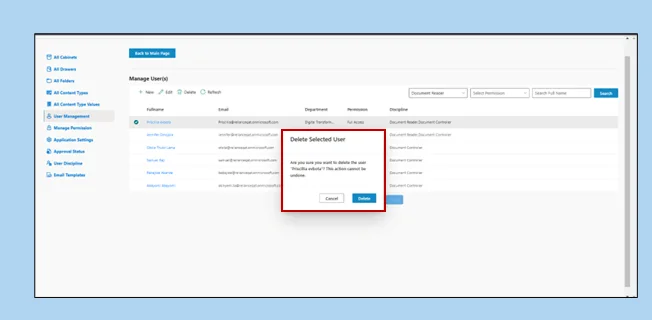
A confirmatory pop-up screen appears to validate the deletion of the selected user.
Click on the “Delete” button on the confirmation screen to successfully remove the user from the user management page.
We use cookies to ensure that we give you the best experience on our website. If you continue to use this site we will assume that you are happy with it.